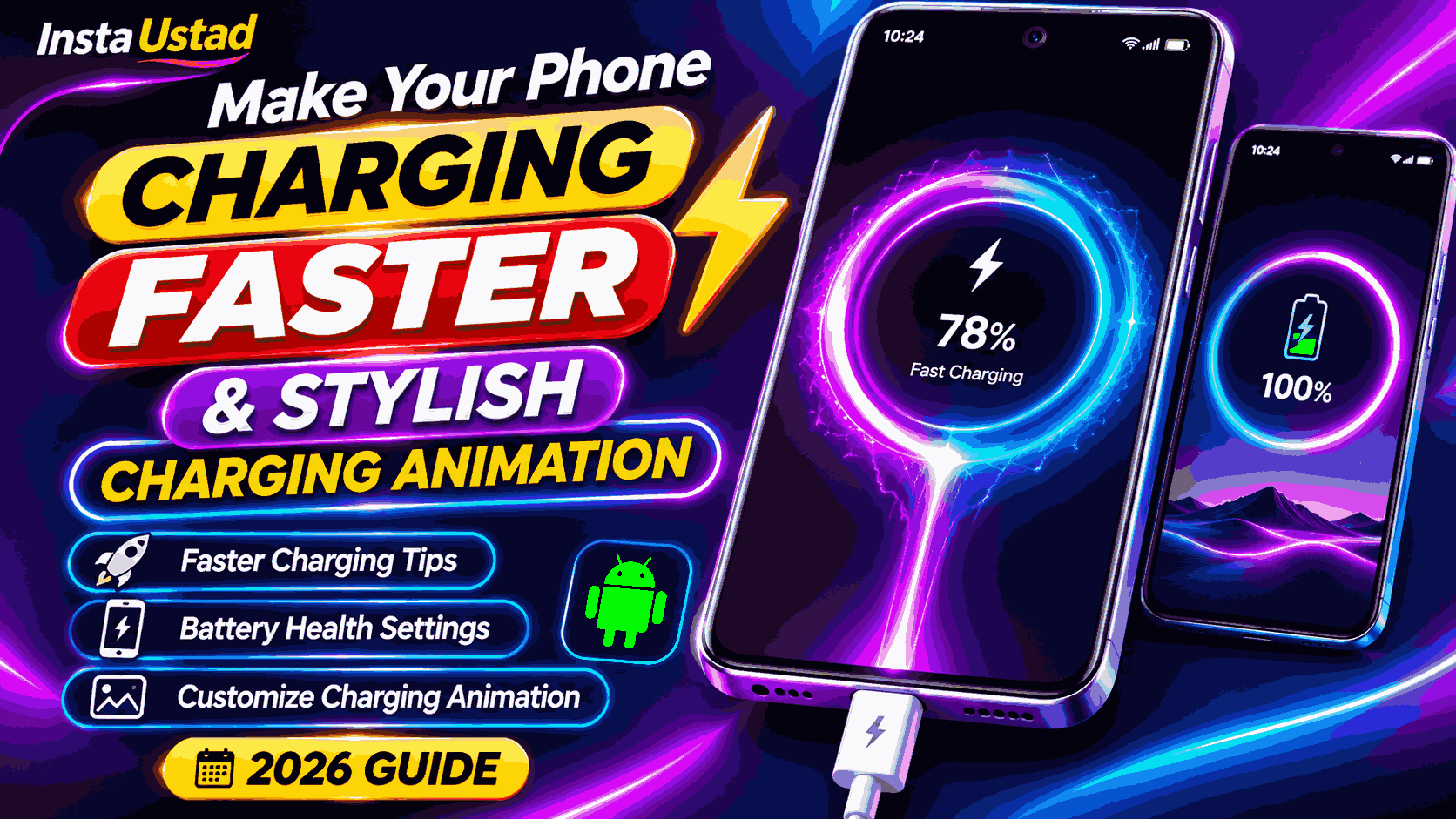
Do you want your smartphone to charge faster and look more stylish whenever you connect it to a charger? Imagine plugging in your phone and seeing a beautiful neon charging animation, glowing battery effects, and a live battery percentage on your screen.
Sounds cool, right?
The good news is that you can improve your phone’s charging experience with a few simple settings, the right charging accessories, and a stylish charging animation. You don’t need an expensive smartphone to personalize your charging screen.
In this guide, we’ll explain how to make your Android phone charge more efficiently, how to add a beautiful charging animation, and how to customize the charging experience in 2026.
Let’s get started!
What Is a Stylish Charging Animation?
A charging animation is a visual effect that appears when you connect your smartphone to a charger.
Instead of seeing only a small battery icon, you can display attractive animations such as:
- Neon battery rings
- Lightning charging effects
- 3D battery animations
- Digital percentage displays
- Glowing energy effects
- Colorful charging wallpapers
Some Android smartphones include built-in charging animations, while others allow you to customize the experience using compatible applications.
How to Add a Stylish Charging Animation on Android
If your smartphone doesn’t have an attractive charging screen, you can explore a third-party charging animation application.
Follow these simple steps:
Step 1: Open Google Play Store
Unlock your Android phone and open the Google Play Store.
Search for a charging animation application. Before installing anything, check its ratings, reviews, developer information, privacy policy, and requested permissions.
Step 2: Install a Charging Animation App
Choose an application that offers the animation styles you like.
For example, you can explore applications such as Battery Charging Animation on Google Play.
Avoid installing unknown APK files from random websites.
Step 3: Open the Application
After installation, open the application and explore its available features.
Depending on the app, you may find different charging effects, animated wallpapers, battery percentage displays, and customization options.
Step 4: Choose Your Favorite Animation
Browse the available animation collection and select your favorite design.
You can look for:
- Electric lightning effects
- Neon circle animations
- 3D battery effects
- Colorful energy animations
- Minimal digital charging screens
Preview the animation before applying it.
Step 5: Customize Your Charging Screen
Some applications allow you to customize different visual elements, including:
- Animation colors
- Battery percentage
- Animation size
- Glow effects
- Screen position
- Background style
Choose a design that matches your phone’s overall appearance.
Step 6: Allow Only Necessary Permissions
Some charging animation applications may request special permissions to display animations over other applications or on the lock screen.
Read each permission carefully before allowing it. Avoid granting unnecessary access to your personal information.
Step 7: Connect Your Charger
Now connect your smartphone to its charger.
If the application supports automatic charging detection and your phone allows the required functionality, your selected animation may appear when charging starts.
Enjoy your new charging screen!
How to Make Your Android Phone Charge Faster
A charging animation can make your phone look stylish, but it cannot increase the actual charging speed.
If you want your phone to charge faster, follow these practical tips.
1. Use the Original or Compatible Fast Charger
Always use a genuine charger or a reliable charger that supports your smartphone’s charging technology.
Check your phone manufacturer’s recommended charging specifications before purchasing a replacement.
2. Use a Compatible Charging Cable
A poor-quality or damaged cable can affect charging performance.
Use a good-quality cable that supports the required charging power for your device.
3. Avoid Using Your Phone While Charging
Playing games, watching videos, or running demanding applications while charging can generate additional heat and consume power.
Try leaving your phone idle while charging.
4. Keep Your Phone at a Normal Temperature
Excessive heat can affect charging performance and battery health.
Avoid charging your smartphone under direct sunlight or in extremely hot environments.
5. Turn On Airplane Mode When Appropriate
If you don’t need mobile connectivity, enabling Airplane Mode can reduce power consumption while charging.
However, the actual difference in charging time depends on your phone and usage.
6. Close Unnecessary Background Activities
Apps running in the background may consume battery power.
Close unnecessary applications and avoid demanding tasks while charging.
7. Check Your Phone’s Fast Charging Settings
Some Android devices offer charging-related options in their Battery settings.
Depending on your device, you may find options such as Fast Charging or Fast Wireless Charging.
Check whether the feature is supported and enabled on your phone.
Best Charging Animation Styles to Try
Here are some popular visual styles you can explore when customizing your charging screen.
| Animation style | Appearance |
|---|---|
| Neon Ring | Glowing circular battery effect |
| Electric Lightning | Animated electricity effects |
| 3D Battery | Three-dimensional battery design |
| Digital Percentage | Modern numerical battery display |
| Liquid Charging | Smooth liquid-style animation |
| Minimal Glow | Simple and clean charging effect |
The available designs depend on the application you choose.
Important Things to Know Before Installing a Charging App
Before installing a third-party charging animation application, keep these points in mind:
- Check the application’s privacy policy.
- Review the permissions it requests.
- Avoid unnecessary accessibility permissions.
- Be careful with apps that display excessive advertisements.
- Uninstall applications you no longer use.
- Remember that animations do not improve the phone’s actual charging speed.
A charging animation application changes the visual experience, not your phone’s charging hardware.
Frequently Asked Questions (FAQs)
Does a charging animation make my phone charge faster?
No. Charging animations are visual effects. Actual charging speed depends on your phone’s charging hardware, charger, cable, temperature, and supported charging technology.
Can I add a charging animation to any Android phone?
Many Android phones can use compatible charging animation applications, but the available features and automatic display behavior vary by device and Android version.
Are charging animation applications free?
Some applications are free to install, while others offer premium animations or additional features through in-app purchases.
Can I change the color of my charging animation?
Yes, some applications allow you to customize animation colors, glow effects, size, and other visual settings.
Does a charging animation app damage my battery?
An animation does not directly increase charging power. However, keeping the display on for long periods consumes additional energy and can contribute to heat. Choose lightweight animations and avoid unnecessary screen activity.
Can I use my own photo as a charging background?
Some charging applications support custom photos or videos as charging wallpapers. Check the application’s features before installing it.
Final Words
Making your phone’s charging experience faster and more stylish doesn’t have to be complicated.
Use a compatible charger and cable, keep your device at a suitable temperature, and avoid unnecessary activities while charging. You can also personalize your charging screen with attractive animations, neon effects, and battery percentage displays.
Just remember that charging animations are designed for appearance and do not increase the actual charging speed.
For more useful Android tricks, smartphone customization tutorials, AI prompts, and technology updates, keep visiting Insta Ustad.