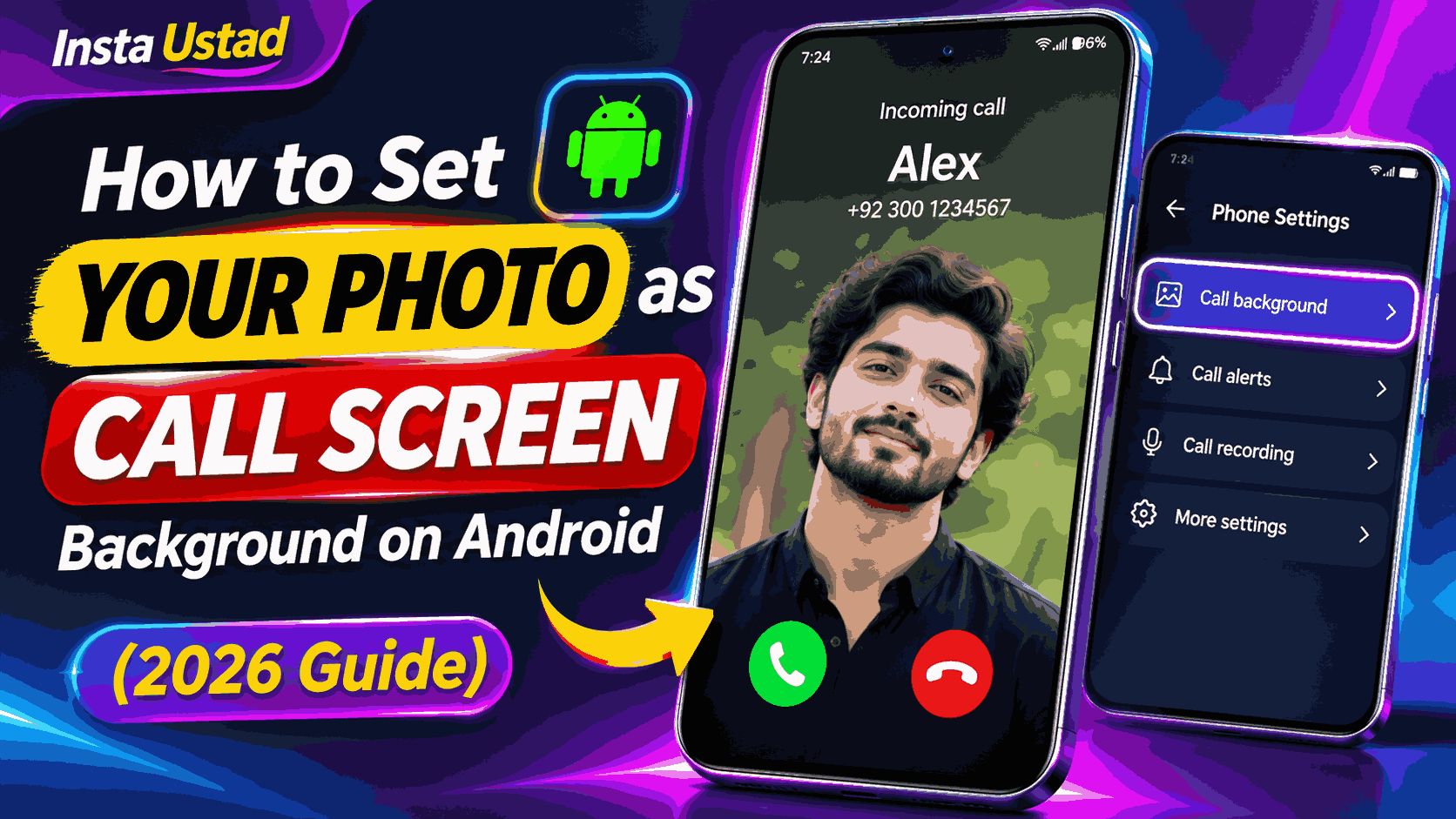
Have you ever wanted to see your favorite photo whenever someone calls you? Instead of looking at the same boring incoming call screen every time, you can personalize your phone and give it a fresh look using your own picture.
The good news is that some Android smartphones allow you to use a personal photo or even a short video as your call background. This feature can make your calling screen look more stylish and personal.
In this guide, you will learn how to set your own photo as a call background on Android, how to customize it on Samsung Galaxy phones, and what alternatives you can try if your phone does not show this option.
Let’s get started!
What Is a Custom Call Background on Android?
A custom call background is a feature that allows you to replace the default incoming or outgoing call screen background with your own picture or video.
For example, you can use:
- Your favorite personal photo
- A family picture
- A couple photo
- A stylish portrait
- A favorite wallpaper
- A short video, if your phone supports it
Depending on your smartphone and calling app, the selected image may appear when you receive or make a phone call.
How to Set Your Own Photo as Call Background on Android
The available settings depend on your phone brand, Android version, and Phone app. Samsung Galaxy devices offer a built-in Call Background feature.
Follow these steps if your Samsung phone supports it.
Step 1: Open the Phone App
First, unlock your smartphone and open the default Phone app that you normally use to make and receive calls.
Step 2: Open Phone Settings
Tap the three-dot menu in the top-right corner of the screen.
A small menu will appear. Select Settings to open your calling options.
Step 3: Find Call Background
Look for the Call Background option in the settings menu and tap it.
You may see different customization options depending on your device and software version.
Step 4: Select Background
Tap the Background option to view the available call backgrounds.
You may see some pre-installed designs. To use your own picture, look for the plus (+) icon or the option to add a background from your Gallery.
Step 5: Choose Your Favorite Photo
Select Select from Gallery and choose the picture you want to use.
Pick a clear, high-quality image that looks good on your phone screen. Adjust the image if the preview gives you that option.
Step 6: Apply Your New Call Background
Once you are happy with the preview, tap Set as call background.
That’s it! Your selected picture should now appear as your call background on supported devices.
How to Set a Different Call Background for a Specific Contact
Want to use a different photo for a particular person?
Some Samsung Galaxy configurations also provide contact-specific call background settings.
- Open the Phone or Contacts app.
- Select the contact you want to customize.
- Open the contact’s details or editing options.
- Look for the Call Background setting, if available.
- Choose a picture from your Gallery.
- Save or apply your selection.
The exact menu may vary depending on your phone model and software version.
Can You Set a Video as Your Call Background?
Yes, some supported Samsung Galaxy phones also allow you to use a short video instead of a static photo.
This can make your calling screen look even more interesting.
To try it:
- Open the Phone app.
- Go to Settings.
- Select Call Background.
- Open Background.
- Choose a video from your Gallery.
- Preview it and apply it.
Important: Samsung’s instructions specify that the selected video should not be longer than 15 seconds. Available options may vary by device.
What If the Call Background Option Is Missing?
If you cannot find the Call Background option, don’t worry. It does not necessarily mean something is wrong with your phone.
Here are a few things you can check:
1. Check Your Phone Model
Not every Android smartphone has the same calling features. Some manufacturers provide additional customization options, while others use a simpler calling interface.
2. Update Your Phone Software
Open your phone’s Settings and check whether a software update is available.
An update may improve compatibility or add features, depending on your device.
3. Check Your Phone App
Different calling apps have different customization options. The Samsung Phone app and Google Phone app do not necessarily offer identical settings.
4. Restart Your Smartphone
If the option should be available but is not appearing, restart your device and check the Phone app settings again.
5. Check Your Device’s Official Support Guide
If you still cannot find the feature, check your smartphone manufacturer’s support website or user manual for the exact instructions for your model.
Does This Trick Work on Every Android Phone?
No. This is an important point to understand before trying the method.
Android smartphones use different interfaces and calling applications. A feature available on one Samsung Galaxy device may not appear on another Android phone.
| Phone type | Custom call background |
|---|---|
| Samsung Galaxy | Available on supported models |
| Google Pixel | Depends on the Phone app and available features |
| Xiaomi / Redmi | Depends on model and software |
| Realme | Depends on model and software |
| OPPO / Vivo | Depends on model and software |
| Other Android phones | Check the available calling settings |
Always check your device’s settings before installing additional applications.
Tips for Choosing the Best Call Background Photo
A good picture can make your incoming call screen look much better. Here are a few simple tips:
- Choose a high-resolution photo.
- Use a portrait image for a better full-screen appearance.
- Avoid pictures with too much text.
- Keep the main subject near the center.
- Choose an image with enough contrast.
- Make sure important caller information remains visible.
Frequently Asked Questions (FAQs)
Can I use my own picture as an incoming call background?
Yes, if your smartphone and Phone app support custom call backgrounds. Samsung Galaxy devices offer this feature on supported models.
Can I use a video instead of a photo?
Some supported Samsung Galaxy phones allow you to use a short video as a call background. Samsung specifies a maximum duration of 15 seconds.
Why can’t I find the Call Background option?
Your phone model, software version, or calling app may not support this feature. Check your manufacturer’s instructions for your exact device.
Does this method require root access?
No root access is required to use the built-in Call Background feature on supported Samsung Galaxy phones.
Will changing my call background affect my normal wallpaper?
No. The call background is a separate customization setting and does not normally change your home screen or lock screen wallpaper.
Can I use a different picture for every contact?
Some supported Samsung configurations offer contact-specific call background options. Availability depends on the device and software version.
Final Words
Customizing your incoming call screen is a simple way to make your Android smartphone feel more personal. If your device supports the feature, you can select a favorite photo or even a short video and use it as your call background.
Just remember that Android features vary between manufacturers and models, so the steps may not look exactly the same on every phone.
If you found this guide helpful, keep visiting Insta Ustad for more useful Android tricks, AI prompts, tech tutorials, and digital tips.