
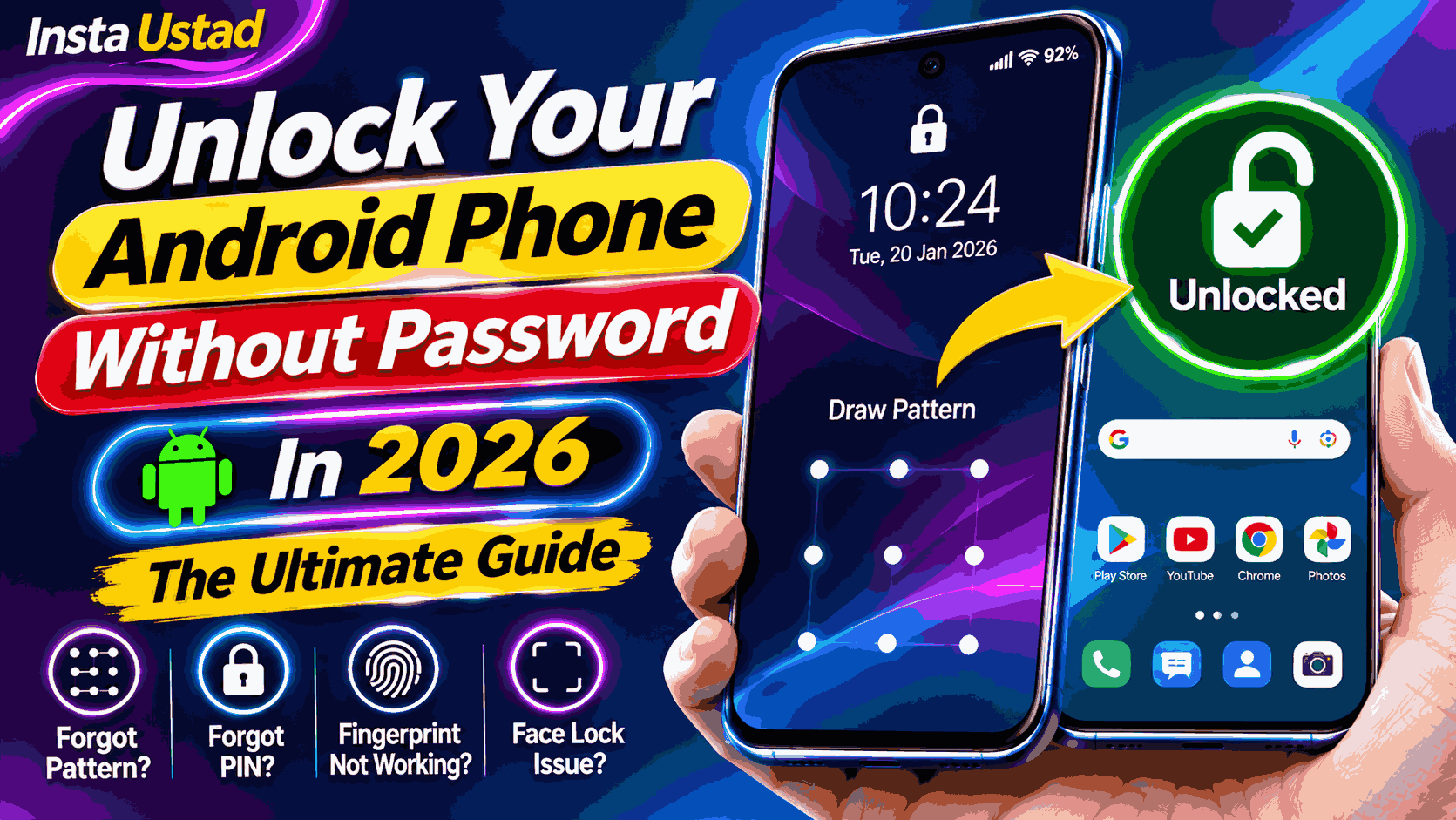
Have you ever forgotten your Android phone’s PIN, password, or pattern lock? It can be frustrating, especially when you need to access important photos, contacts, messages, or applications.
The good news is that there are official ways to recover access to your Android phone. The exact method depends on your phone brand, Android version, and the security features you previously enabled.
In this guide, we’ll explain practical ways to regain access to your own Android device in 2026, including Google account recovery, manufacturer support, and factory reset options. We’ll also explain what happens to your data before you choose a recovery method.
Why Can’t You Unlock Your Android Phone?
Android phones use screen locks to protect personal information. Depending on your device, you may have configured:
- PIN lock
- Password lock
- Pattern lock
- Fingerprint authentication
- Face unlock
If you forget your main PIN, password, or pattern, your fingerprint or face recognition may not always work. Some devices require the primary screen-lock credential again after restarting or following certain security events.
Don’t worry. First, try the recovery options below.
1. Try Your Previously Configured Unlock Method
Before choosing a reset, check whether you remember the correct PIN, password, or pattern.
If your phone supports fingerprint or face recognition, try those options when available. However, Android may still require your primary password after a restart or security-related event.
Avoid repeatedly guessing passwords because some devices temporarily increase the waiting time after incorrect attempts.
2. Use Google’s Find Hub
Google’s Find Hub can help you locate, secure, or erase a lost Android device, provided the required settings and account access are available.
However, it is important to understand that Find Hub does not provide a universal feature for remotely removing an existing screen-lock password.
You can visit Google’s official service:
Sign in using the Google account associated with your phone and check the available device options.
Important: The erase option permanently deletes data stored on the device that isn’t backed up. It should only be considered when you understand the consequences and have no suitable alternative.
3. Check Your Phone Manufacturer’s Recovery Options
Different Android brands provide different support and recovery procedures.
If you use Samsung, Xiaomi, Google Pixel, OPPO, Vivo, or another Android brand, visit its official support website.
You may be able to find instructions for recovering access, resetting the device, or arranging an authorised service appointment.
Keep your purchase receipt or proof of ownership available if the manufacturer requests it.
4. Factory Reset Your Android Phone
If you cannot recover the original screen-lock credential, a factory reset may be an option.
Warning: A factory reset erases locally stored data, including photos, applications, and files that haven’t been backed up.
The reset procedure differs between manufacturers and models. Follow the official instructions for your specific device rather than relying on random button combinations from unknown websites.
After resetting, Android may ask you to verify a Google account previously associated with the device. This is part of Factory Reset Protection (FRP), designed to protect phones against unauthorised use.
You should know the previously synchronised Google account and password before proceeding.
5. Recover Your Google Account If You Forgot Its Password
Sometimes the problem isn’t only the phone’s screen lock. You may also have forgotten the Google account password required after a reset.
You can use Google’s official account recovery page:
Follow the instructions and use the recovery email address or phone number associated with your account when requested.
Once you regain access, follow the official device setup instructions.
6. Visit an Authorised Service Centre
If none of the available recovery options works, contacting the manufacturer’s authorised service centre is a sensible choice.
The technicians can check your device model and explain the supported recovery procedure.
Take your phone, purchase receipt, and relevant ownership documents if available.
Avoid unknown unlocking applications or websites that promise instant access. Some may contain harmful software, collect personal information, or cause further problems.
Important Things to Know Before Resetting Your Phone
Before choosing a factory reset, remember these points:
- Backed-up photos and contacts may be recoverable after signing in again.
- Data stored only on the phone may be permanently lost.
- You may need the previously linked Google account after resetting.
- A reset does not remove ownership verification.
- Always follow instructions for your exact phone model.
Taking a few minutes to check your backups can save you from losing important information.
Frequently Asked Questions (FAQs)
1. Can I unlock my Android phone without knowing the password?
If you have forgotten your screen-lock credential, use the official recovery options supported by your manufacturer. A factory reset may be necessary, but it erases locally stored data.
2. Can Google Find Hub remove my screen lock?
No. Find Hub can help locate, secure, or erase a supported device, but it does not universally remove an existing screen-lock password.
3. Will a factory reset delete my photos?
A factory reset deletes locally stored data that has not been backed up. Check your cloud backups before proceeding.
4. What is FRP lock on Android?
Factory Reset Protection is an Android security feature that may require a previously synchronised Google account after a reset.
5. Can I unlock my phone without losing data?
It depends on your device and available recovery options. If you cannot provide the original screen-lock credential, there may be no supported way to regain access without erasing local data.
Final Words
Forgetting your Android password can be stressful, but you should avoid risky shortcuts and unknown unlocking tools.
Start by checking your available authentication methods, Google account access, and manufacturer support options. If a factory reset becomes necessary, understand the data-loss consequences and make sure you can verify the Google account previously connected to your phone.
Always use official recovery methods to protect your personal information and keep your Android device secure.
For more Android tutorials, smartphone tricks, useful apps, and technology guides, keep visiting Insta Ustad.




One Comment on “Unlock Your Android Phone Without Password in 2026 – The Ultimate Guide”