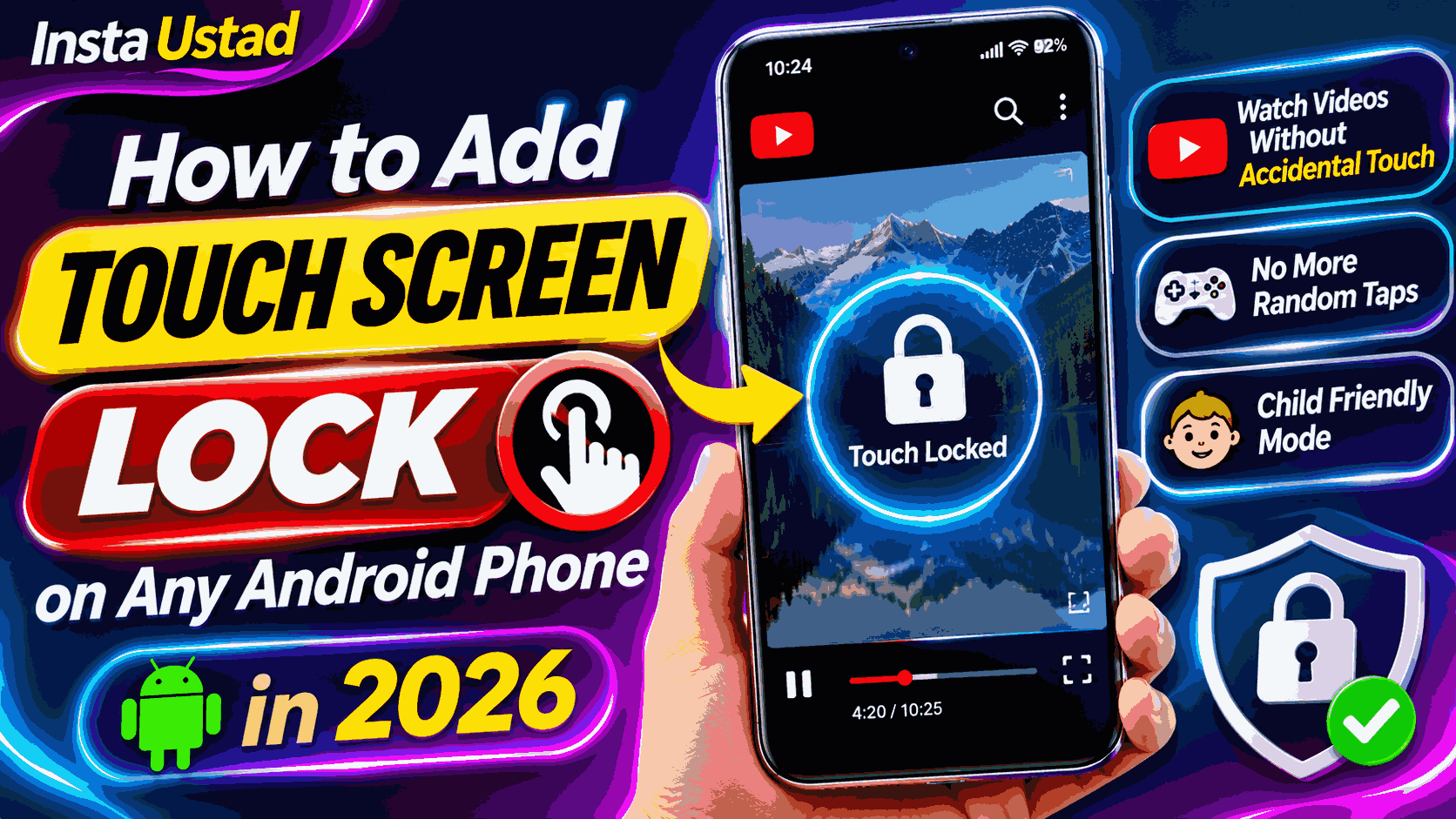
Have you ever watched a video on your phone and accidentally touched the screen, causing the video to pause or skip? Or have you handed your smartphone to a child, only to find that they opened a completely different application?
These little problems can be frustrating, especially when you want your phone’s display to stay ON without responding to unwanted touches.
The good news is that you can solve this problem with a Touch Screen Lock feature on many Android smartphones. It allows you to keep your display visible while temporarily blocking accidental screen touches.
In this guide, we’ll explain how to add a touch display lock to your Android phone, how to use it while watching videos, and how to unlock the screen when you need normal touch controls again.
Let’s get started!
What Is a Touch Display Lock?
A Touch Display Lock is a feature that temporarily disables touch input on your smartphone’s display while keeping the screen turned on.
In simple words, your phone continues displaying the video, image, or application, but ordinary taps and swipes are blocked.
This feature can be useful in several situations:
- Watching YouTube videos without accidental touches
- Playing videos for children
- Following cooking recipes
- Listening to music while the phone is in your pocket
- Displaying photos without unwanted swipes
- Preventing accidental screen interaction
Some Android phones and third-party applications offer different versions of this functionality.
How to Add Touch Screen Lock on Any Android Phone
If your smartphone doesn’t have a built-in touch lock option, you can try a compatible third-party application from the Google Play Store.
Follow these steps:
Step 1: Open Google Play Store
First, unlock your Android smartphone and open the Google Play Store.
Make sure you’re using the official Play Store rather than downloading applications from unknown websites.
Step 2: Search for a Touch Lock App
Search for an application such as Touch Lock: Disable Touch or Screen Touch Lock.
Check the app’s ratings, recent reviews, compatibility, privacy policy, and permissions before installing it.
Step 3: Install and Open the Application
Choose a suitable application and tap Install.
Once installation is complete, open the application and explore its instructions.
Different applications may offer different features and controls.
Step 4: Enable the Required Permissions
Depending on the application, you may need to enable permissions such as:
- Display over other apps
- Accessibility Service
- Notification access, if required by its features
Read the permission descriptions carefully before enabling anything.
Only grant permissions that are necessary for the touch-lock feature you want to use.
Step 5: Open the Video or Application
Now open the application you want to use.
For example, you can open YouTube, a video player, a photo gallery, or another compatible application.
Start playing your video or displaying your content.
Step 6: Activate Touch Lock
Return to the touch-lock application’s floating control or notification shortcut, depending on the app you installed.
Tap the lock control to activate the touch-blocking feature.
Some applications display a short countdown before locking the screen.
Once activated, ordinary screen touches should no longer interrupt your activity.
Step 7: Unlock Your Screen
When you want to use your phone normally again, follow the unlock gesture or method configured inside the application.
Some apps use a double tap, a long press, a volume button, a PIN, or a floating unlock control.
Important: Always test the unlocking method before activating the lock. This helps prevent getting stuck with touch controls disabled.
Best Touch Screen Lock Apps for Android
Here are some applications you can explore for temporarily blocking accidental touches.
1. Touch Lock: Disable Touch
This application offers touch-blocking controls, a floating lock bubble, and additional options depending on the permissions enabled.
It can be useful for preventing unwanted screen interaction while watching videos or using other applications.
2. Screen Touch Lock
Screen Touch Lock offers a floating padlock control and a countdown before activating its touch-blocking overlay.
It is designed to help prevent accidental taps while watching videos and using compatible applications.
3. Touch Blocker: Disable Screen
Touch Blocker is another option for blocking screen interactions while keeping the display visible.
It uses Android accessibility functionality to provide its touch-blocking behavior.
Features and compatibility can vary depending on your smartphone and Android version.
How to Lock Your Screen While Watching YouTube
One of the most useful situations for this feature is watching YouTube videos without accidentally pausing or skipping them.
Here’s how you can use it:
- Install a compatible Touch Lock application.
- Open YouTube on your Android phone.
- Start playing your favorite video.
- Activate the touch-lock control.
- Make sure the video continues playing.
- Use the application’s unlock method when you want to interact with the screen again.
This can make watching long videos more convenient, especially when you don’t want accidental taps to interrupt playback.
Does Touch Screen Lock Turn Off Your Display?
No. A typical touch-blocking application keeps your phone’s display ON while blocking supported touch interactions.
This is different from pressing your phone’s power button or turning the display off.
Your video or other content may continue running underneath the touch-blocking layer.
However, the exact behavior depends on the application, device, and Android version.
Is Touch Lock Available on Every Android Phone?
Not every Android smartphone includes a built-in touch-lock feature.
Some manufacturers provide similar options through their system settings, while other devices may require a compatible third-party application.
The availability of features also depends on your Android version and the application’s permissions.
Therefore, an application that works on one smartphone may behave differently on another.
Important Safety and Privacy Tips
Before using any third-party touch-lock application, remember these important points:
- Download applications from trusted sources.
- Read the privacy policy before granting permissions.
- Avoid granting unnecessary Accessibility permissions.
- Learn the unlock method before activating the lock.
- Remember that a touch blocker is not a complete security lock.
- Do not rely on it as a replacement for parental supervision.
- Check whether the application supports your Android version.
A touch-lock overlay may not block every system control, notification panel, hardware button, or navigation action.
Frequently Asked Questions (FAQs)
Can I lock my Android screen without turning off the display?
Yes. Compatible touch-lock applications can block supported screen interactions while keeping the display ON.
Can I use Touch Lock while watching YouTube?
Yes. You can use a compatible touch-blocking application while watching YouTube to reduce accidental taps and interruptions.
Does Touch Screen Lock work on Samsung phones?
Many touch-lock applications support Samsung Android devices, but compatibility and available features depend on the particular model and software version.
Can I unlock my phone after activating Touch Lock?
Yes. Follow the unlock gesture or method provided by your selected application. Always test it before activating the lock.
Is Touch Lock the same as Screen Pinning?
No. Screen Pinning keeps a selected application in the foreground, while a touch-lock application is designed to block supported touch interactions. They serve different purposes.
Is a Touch Lock application free?
Some applications offer free basic functionality, while others include advertisements, usage limits, or optional paid features.
Final Words
A Touch Display Lock can be a useful feature when you want to keep your Android screen visible without accidentally interacting with it.
Whether you’re watching YouTube videos, following a recipe, viewing photos, or letting a child watch a video under your supervision, a compatible touch-lock application can make the experience more convenient.
Just remember to check app permissions, test the unlocking method, and choose an application that works properly with your device.
For more useful Android tricks, smartphone tips, AI prompts, and technology tutorials, keep visiting Insta Ustad.