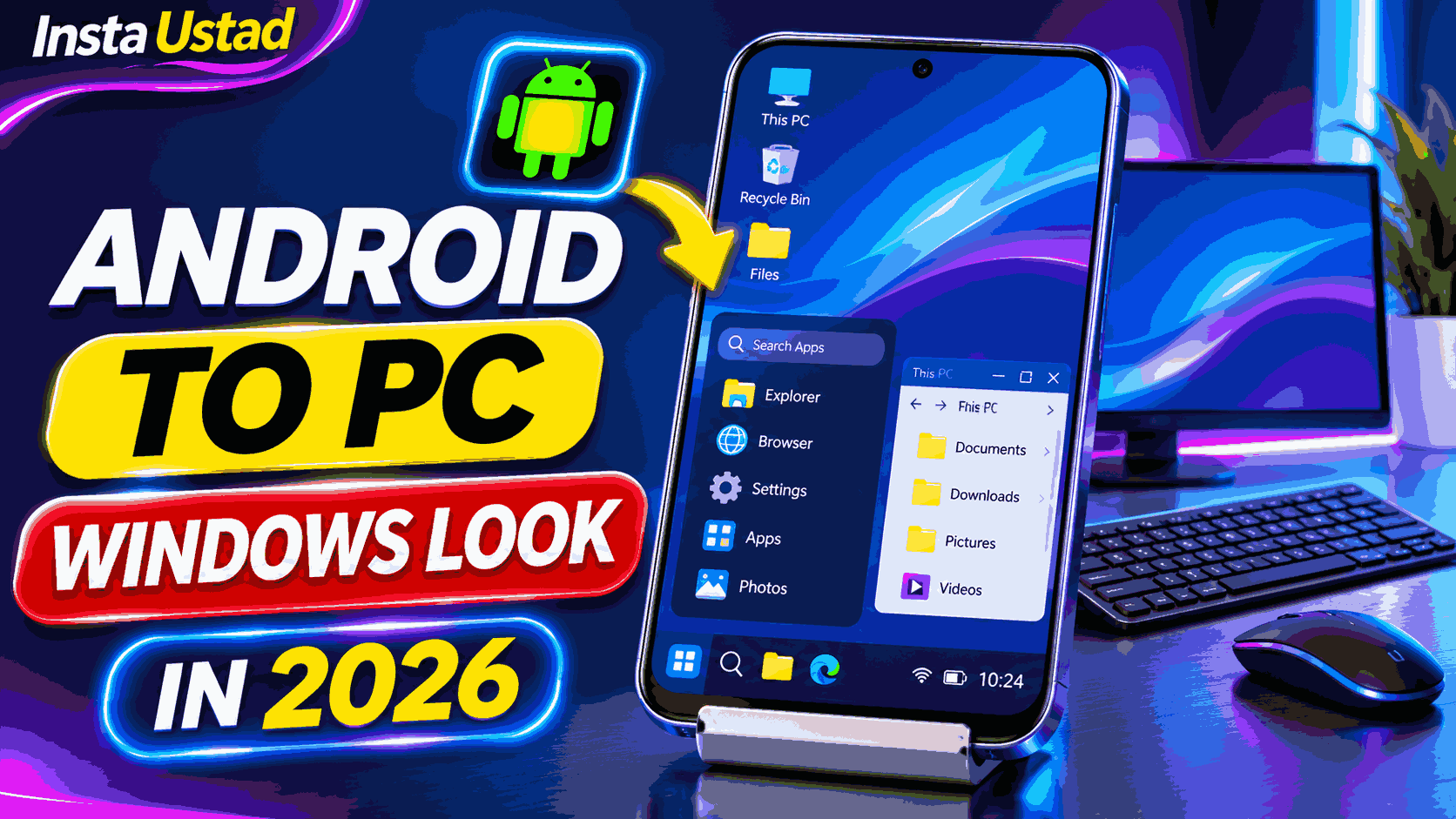
Have you ever imagined using your Android smartphone like a Windows computer? What if you could see a desktop screen, Start Menu, taskbar, file manager, folders, and app shortcuts directly on your phone?
Sounds interesting, right?
The good news is that you can give your Android smartphone a complete Windows-inspired desktop look without purchasing an expensive computer. With the help of a desktop launcher, you can customize your phone’s home screen and make it look similar to a Windows PC.
You can also connect a compatible keyboard and mouse to make the experience more comfortable.
In this guide, we’ll show you how to turn your Android phone into a Windows-style computer in 2026, step by step.
Let’s get started!
Can You Really Turn an Android Phone into a Windows Computer?
Yes, you can make your Android phone look and feel like a Windows computer.
However, there is an important difference: a Windows-style launcher changes the appearance and layout of your Android interface. It does not install the actual Windows operating system on your phone.
You can enjoy features such as:
- Windows-inspired desktop interface
- Start Menu and app shortcuts
- PC-style taskbar
- Desktop folders and widgets
- File manager
- Custom wallpapers and themes
- Keyboard and mouse support
The exact features depend on the launcher and your Android device.
What Do You Need to Turn Your Phone into a PC?
Before starting, make sure you have the following:
- An Android smartphone.
- An internet connection.
- A compatible Windows-style launcher.
- Optional Bluetooth or USB keyboard.
- Optional Bluetooth or USB mouse.
You don’t need to root your phone or install a custom ROM for a basic desktop-style appearance.
How to Turn Your Android Phone into a Windows Computer
Follow these simple steps to give your smartphone a Windows-inspired desktop interface.
Step 1: Open Google Play Store
First, unlock your Android smartphone and open the Google Play Store.
You will use it to find and install a desktop-style launcher.
Step 2: Search for a Windows Launcher
Search for a Windows-style launcher application.
Some options you can explore include:
- Win 11 Launcher
- Win-X Launcher
- HyperDroid – PC Launcher
- Desktop Launcher – Computer UI
Before installing an application, check its reviews, developer information, compatibility, advertisements, and privacy policy.
Step 3: Install Your Selected Launcher
Choose the launcher you like and tap the Install button.
Wait until the installation is complete, then open the application.
Follow its initial setup instructions.
Step 4: Set the Launcher as Your Default Home App
Some launchers may ask you to set them as your default home application.
If a selection appears, choose your newly installed launcher and select Always.
If you don’t see this option, open:
Settings → Apps → Default Apps → Home App
The exact menu names may vary depending on your smartphone.
Select the Windows-style launcher you installed.
Step 5: Explore the Windows-Style Desktop
After setting the launcher as your default home app, you should see its desktop-style interface.
Depending on the application, you may find:
- Desktop icons
- Start Menu
- Taskbar
- App shortcuts
- File manager
- Widgets
- Customizable folders
You can arrange the available shortcuts according to your preference.
Step 6: Customize Your Desktop
Now make your smartphone look more like a personal computer.
Explore the launcher’s customization settings and change:
- Desktop wallpaper
- Icon layout
- Taskbar appearance
- Theme colors
- App shortcuts
- Desktop widgets
Choose a clean wallpaper and organize your frequently used applications for a better experience.
Step 7: Connect a Keyboard and Mouse (Optional)
If you want a more computer-like experience, connect a Bluetooth keyboard and mouse.
Follow these steps:
- Turn on Bluetooth on your smartphone.
- Put your keyboard or mouse into pairing mode.
- Open your phone’s Bluetooth settings.
- Select the keyboard or mouse when it appears.
- Complete the pairing process.
You can now use a physical keyboard and mouse with compatible Android applications.
If your phone supports USB accessories, you may also use a compatible USB-C hub or OTG adapter.
Step 8: Enjoy Your New Desktop-Style Android Experience
That’s it!
Your Android smartphone now has a Windows-inspired desktop appearance.
You can open applications, browse files, organize shortcuts, and use compatible accessories while enjoying a more computer-like interface.
Remember, the applications and system functions still run on Android.
Best Windows Launchers for Android in 2026
Here are some desktop-style launchers worth exploring.
1. Win 11 Launcher
Win 11 Launcher gives your Android phone a Windows-inspired appearance with customizable themes, app shortcuts, and file-management features.
It is a good option if you prefer a familiar Windows-style interface.
2. Win-X Launcher
Win-X Launcher offers Windows-inspired layouts and customization options.
It supports different visual styles inspired by Windows 10 and Windows 11.
3. HyperDroid – PC Launcher
HyperDroid provides a PC-style interface designed to make Android look more like a desktop computer.
It is another option for users who want a desktop-inspired home screen.
4. Desktop Launcher – Computer UI
This launcher offers a desktop-style interface with features such as a taskbar, app menu, notification centre, and file manager.
Check its permissions carefully, especially if you enable advanced file-management features.
Want a Real Desktop Experience? Try These Options
A desktop launcher changes your phone’s appearance, but some compatible smartphones offer a more advanced desktop experience.
Samsung DeX
Samsung DeX is available on supported Samsung Galaxy devices. It can provide a desktop-style workspace on a compatible external display, with resizable application windows and keyboard and mouse support.
To use it, check whether your Galaxy model supports DeX and follow Samsung’s official connection instructions.
Motorola Smart Connect
Compatible Motorola devices offer Smart Connect features that can provide different ways to connect your phone to larger displays and accessories.
Available desktop and display features depend on the phone model and software version.
Android Desktop Mode
Some Android devices and software versions offer desktop-style features when connected to an external display.
However, availability and functionality vary by manufacturer and device.
Benefits of Turning Your Android Phone into a Windows-Style PC
Here are some reasons why users enjoy desktop-style launchers:
- Better organization: Arrange your applications and shortcuts like a computer.
- Familiar interface: Enjoy a desktop-inspired layout.
- Easy navigation: Access frequently used apps from a taskbar or app menu.
- Customization: Change wallpapers, themes, and icons.
- Keyboard support: Type more comfortably using a compatible physical keyboard.
- Portable setup: Carry your desktop-style Android experience wherever you go.
Important Things to Know Before Installing a Launcher
Before installing a third-party launcher, keep these points in mind:
- Download applications from trusted sources.
- Check the developer and privacy policy.
- Review requested permissions.
- Avoid unnecessary access to personal files and information.
- Some launchers contain advertisements or in-app purchases.
- A desktop launcher does not install Windows or run Windows PC software.
- Performance depends on your phone’s hardware and Android version.
Frequently Asked Questions (FAQs)
Can I turn any Android phone into a Windows computer?
Most Android smartphones can use a compatible Windows-style launcher. However, advanced desktop functionality depends on the device and its software.
Can I install Windows 11 on my Android phone using a launcher?
No. A launcher only changes the Android interface. It does not install the Windows 11 operating system.
Do I need to root my Android phone?
No. You generally don’t need root access to install and use a desktop-style launcher.
Can I use a keyboard and mouse with my Android phone?
Yes. Most modern Android smartphones support compatible Bluetooth keyboards and mice. USB accessories may also work through a suitable OTG adapter or USB-C hub.
Is a Windows launcher free?
Some launchers are free to install, while others include advertisements, premium themes, or optional in-app purchases.
Can I switch back to my original Android home screen?
Yes. Open your phone’s Settings, find Default Apps or Home App, and select your original system launcher.
Final Words
Turning your Android phone into a Windows-style computer is a fun way to customize your smartphone.
With a suitable desktop launcher, you can enjoy a Start Menu, taskbar, desktop icons, folders, and a PC-inspired interface without purchasing a new device.
For an even better experience, connect a compatible keyboard and mouse. If your smartphone supports a dedicated desktop mode, you can explore that option as well.
Just remember that a Windows-style launcher changes the appearance of Android rather than converting your phone into a real Windows PC.
For more useful Android tricks, technology tutorials, AI prompts, and digital tools, keep visiting Insta Ustad.