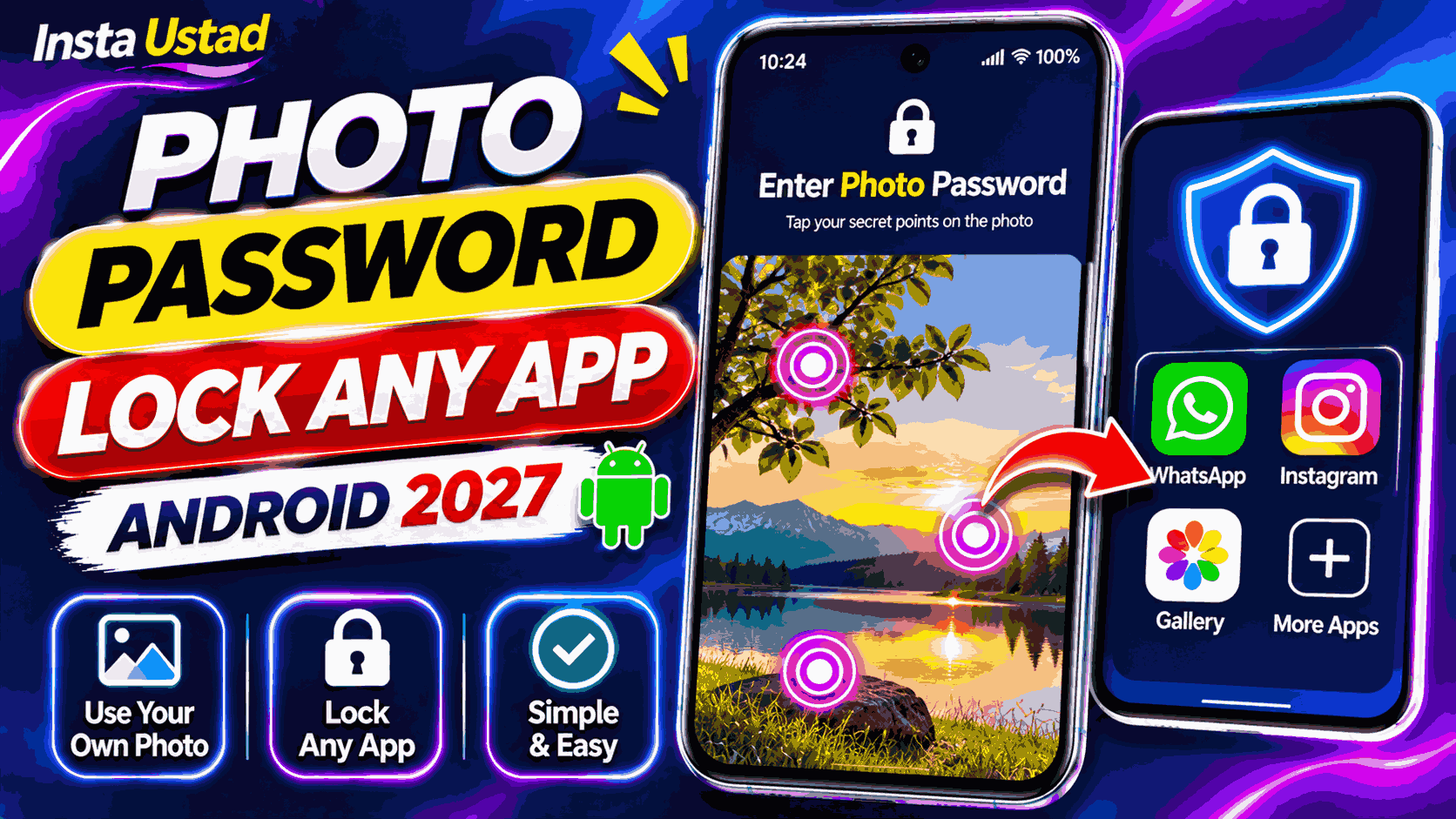
Do you want to protect your WhatsApp, Instagram, Gallery, Facebook, or other Android apps with an extra layer of security? What if you could unlock your favourite apps using a photo instead of entering a traditional PIN or password?
A photo password is an interesting way to personalize your phone’s security. Depending on the app-lock tool you use, you may be able to set a picture, image pattern, or visual combination as an unlocking method.
In this guide, you will learn what photo-password app locking means, how to set it up on Android, and what security precautions you should follow in 2027.
Important: Android does not provide one universal built-in photo-password feature for locking every app. The available options depend on your phone manufacturer and the app-lock application you choose.
1. What Is a Photo Password?
A photo password is a visual authentication method that uses an image or selected points on an image instead of a normal text password.
For example, an app might allow you to:
- Choose a picture from your Gallery.
- Select specific points on that picture.
- Create a visual pattern using those points.
- Use the same pattern to unlock protected content.
Some apps may describe this feature as a picture password, image password, or photo pattern lock.
However, not every app-lock application supports this method. Some only offer PIN, pattern, or fingerprint protection.
2. Check Whether Your Android Phone Has App Lock
Before downloading anything, check your smartphone settings.
Many Android manufacturers provide an App Lock feature, although its name and location can vary.
Try these steps:
- Open your phone’s Settings.
- Tap the search bar.
- Type “App Lock”.
- Check whether the option appears.
- If available, open it and follow the setup instructions.
- Select the apps you want to protect.
Some devices also offer a Private Space, Secure Folder, or similar feature for keeping sensitive apps and information separate.
If your phone supports built-in App Lock, it may be a good starting point because you do not need to install an additional app.
3. How to Lock Apps Using a Photo Password
If you specifically want a photo-based password, you need an app-lock application that clearly supports image-based authentication.
The general setup process may look like this:
- Open the Google Play Store.
- Search for an app-lock application.
- Read its description and check whether it supports a photo or picture password.
- Review recent ratings and developer information.
- Install a trusted and compatible application.
- Open the application and complete its initial setup.
- Choose the photo-password option, if available.
- Select an image or create the visual pattern as instructed.
- Choose the apps you want to protect.
- Test the unlocking process.
The exact steps will differ between applications. If the app only supports PIN, pattern, or fingerprint, it cannot create a genuine photo password.
4. How to Protect WhatsApp with an App Lock
WhatsApp often contains private conversations, photos, and personal information. Protecting it with an additional lock can help prevent unwanted access.
You can use WhatsApp’s own security feature instead of relying entirely on a third-party app.
Follow these steps:
- Open WhatsApp.
- Go to Settings.
- Select Privacy.
- Find App Lock or the available fingerprint-lock option.
- Enable the feature.
- Follow the on-screen instructions.
The exact option depends on your phone and WhatsApp version.
If you want to use a photo password, check whether your chosen app-lock application supports that particular unlocking method.
5. How to Lock Instagram and Other Android Apps
You can also protect other applications, such as Instagram, Facebook, Gallery, and messaging apps.
If your phone has a built-in App Lock feature:
- Open Settings.
- Search for App Lock.
- Open the feature.
- Select Instagram or another supported application.
- Enable app protection.
- Choose an available authentication method.
If you are using a third-party app-lock tool, select the applications from its protection list.
Remember that a photo password is only available if the application specifically supports it.
6. Can You Use Your Own Photo as a Password?
Some visual-password systems allow users to choose their own image. Others use a predefined picture or require you to select particular points on an image.
For example, you might choose a picture and create a visual pattern by selecting three or more specific areas.
When setting up this type of password, keep these tips in mind:
- Choose an image that is easy for you to recognize.
- Avoid selecting obvious points.
- Do not use publicly available personal photographs.
- Keep a secure backup authentication method.
- Never share your unlocking pattern with anyone.
A visual password should be difficult for another person to guess.
7. Is a Photo Password More Secure Than a PIN?
Not necessarily.
A photo password may feel more personal and convenient, but its security depends on how the application implements it.
A strong PIN or password can be more secure than an easy-to-guess picture pattern.
For better protection, look for these features:
- Fingerprint authentication.
- Strong PIN or password support.
- Secure local data storage.
- Protection against unauthorized access.
- Reliable recovery options.
- Clear privacy and permission policies.
Do not assume that an application is secure just because it offers a photo-password feature.
8. Important Safety Tips Before Installing an App Lock
Third-party app-lock applications may request sensitive permissions to monitor app usage or display a lock screen.
Before installing one, follow these precautions:
- Download applications from trusted sources.
- Check the developer’s name and reputation.
- Read recent reviews.
- Understand every permission request.
- Avoid applications that ask for unnecessary personal information.
- Keep Android and your apps updated.
- Test the recovery method before depending on the app.
Also remember that third-party app locks may not provide the same level of protection as security features built directly into your phone.
9. What If You Forget Your Photo Password?
Forgetting a visual password can prevent you from opening protected apps, depending on how the app-lock application works.
Before setting up a photo password, check whether the application provides:
- PIN or password recovery.
- Fingerprint as an alternative.
- A recovery email option.
- A secure reset process.
Do not uninstall an app-lock application without understanding how it stores its settings and what happens to protected data.
If you are using a built-in Android security feature, follow the recovery instructions provided by your phone manufacturer.
10. Frequently Asked Questions
Q1. Can I lock every Android app with a photo password?
You can protect multiple apps using compatible app-lock tools, but not every application supports photo-based authentication.
Q2. Is photo-password locking available on all Android phones?
No. It depends on your phone’s software and the third-party app you install.
Q3. Can I use my own Gallery photo as a password?
Some applications support choosing a personal image, while others use a predefined picture or visual pattern. Check the app’s features before installing it.
Q4. Is a photo password better than a fingerprint?
Not automatically. Fingerprint authentication, a strong PIN, and a properly implemented password system can offer stronger protection than an easily guessed image pattern.
Q5. Do I need to root my Android phone?
Normally, you should not need to root your phone to use standard app-lock features. Avoid rooting just to install an app-lock application.
Conclusion
Locking Android apps with a photo password can be an interesting way to personalize your phone’s security in 2027. However, this feature is not available on every Android device or app-lock application.
Start by checking your phone’s built-in App Lock settings. If you specifically want an image-based password, choose an application that clearly supports it and review its security permissions before installation.
For sensitive apps such as WhatsApp, banking apps, and personal galleries, always prioritize trusted built-in security features, strong authentication, and reliable recovery options.