Have you ever connected your smartphone to WiFi but forgotten its password? Or perhaps your friend wants to connect to your WiFi network, but you don’t want to type a long password?
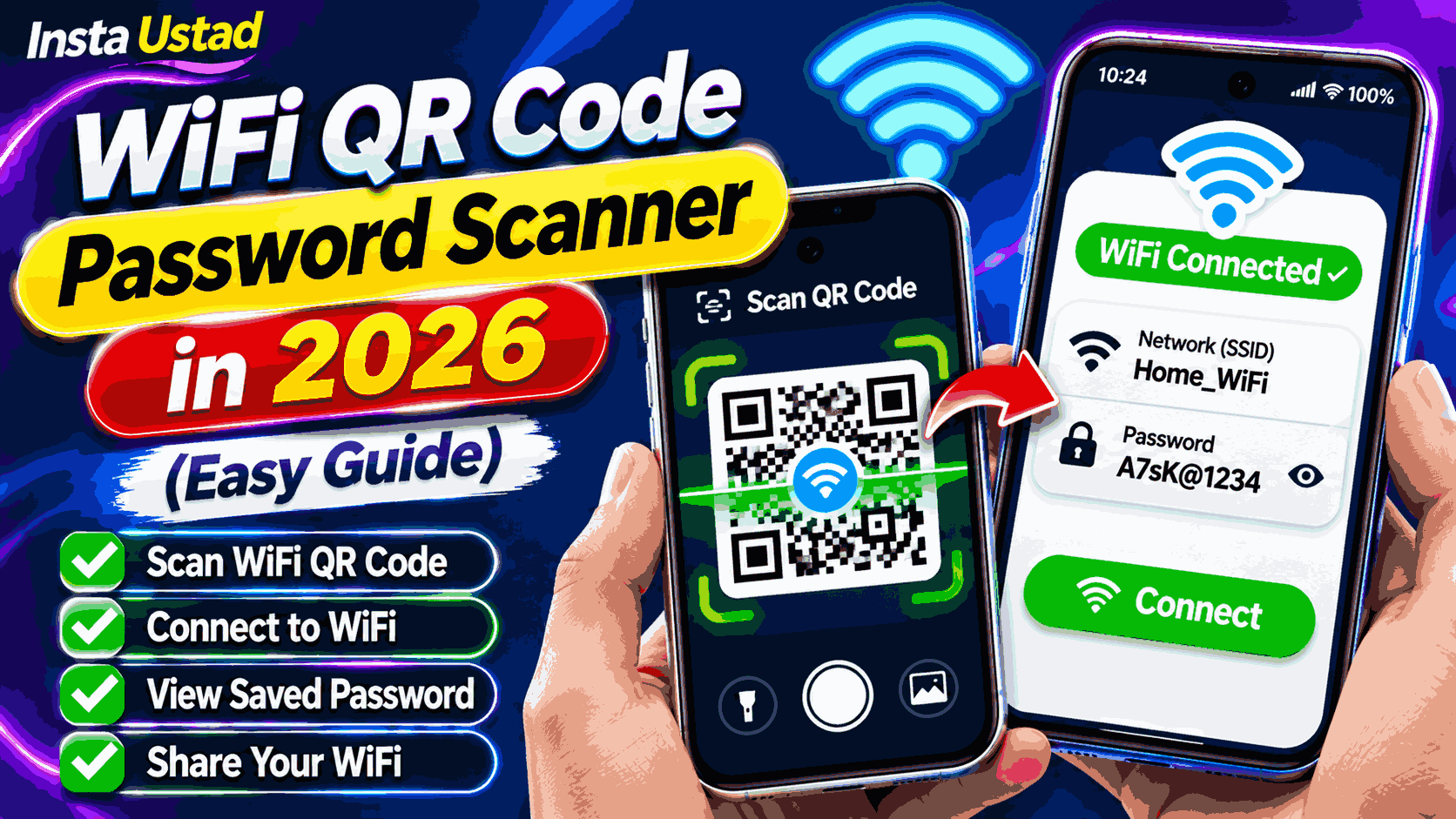
There’s an easy solution! You can use a WiFi QR Code Scanner to scan a WiFi QR code, connect to a network, and in some cases view the saved WiFi details.
Modern Android phones and iPhones already include built-in QR code scanning features, so you may not need to install an additional application.
In this guide, we’ll explain how to scan WiFi QR codes, find saved WiFi passwords, and share your internet connection in 2026.
1. What Is a WiFi QR Code Password Scanner?
A WiFi QR Code Scanner is a feature or application that reads a QR code containing WiFi network information.
A typical WiFi QR code can contain:
- WiFi network name (SSID)
- WiFi password
- Network security type
- Hidden network information
When another smartphone scans the QR code, it can recognize the network details and offer to connect without manually entering the password.
Important: A WiFi QR code can contain the actual password. Only scan codes from networks you trust.
2. How to Scan a WiFi QR Code on Android
If you’re using an Android smartphone, you can usually scan a WiFi QR code directly through your Camera app.
Follow these steps:
- Open the Camera app.
- Point your camera towards the WiFi QR code.
- Keep your phone steady.
- Wait for the scanning notification.
- Tap the Connect or Join Network option.
- Wait for your phone to connect.
If your camera doesn’t recognize the QR code, try Google Lens or the QR scanner available in your phone’s Quick Settings.
The exact options depend on your smartphone manufacturer and Android version.
3. How to Find Your Saved WiFi Password on Android
Did you forget the password of a WiFi network that your phone is already connected to?
You may be able to share its details using Android’s built-in WiFi settings.
- Open your phone’s Settings.
- Select Network & Internet or Connections.
- Tap WiFi or Internet.
- Select your connected WiFi network.
- Tap Share.
- Verify your identity using your PIN, fingerprint, or screen lock.
- Your phone will display a WiFi QR code.
Another phone can scan this code to connect to the same network.
Some Android phones also display the password as readable text below the QR code, while others show only the QR code. Swann+2
4. How to Scan a WiFi QR Code on Samsung
Samsung Galaxy smartphones also provide a built-in WiFi sharing feature.
Follow these steps:
- Open Settings.
- Tap Connections.
- Select WiFi.
- Tap the Settings icon beside your connected network.
- Find the QR Code or Share option.
- Display the QR code on your screen.
- Let another phone scan it.
You can use this feature to share your WiFi connection without telling someone the password verbally.
Menu names may differ depending on your Samsung model and software version.
5. How to Scan a WiFi QR Code on iPhone
If you have an iPhone, you can scan WiFi QR codes using the built-in Camera app.
- Open the Camera app.
- Point it towards the WiFi QR code.
- Wait for the WiFi notification.
- Tap the notification.
- Confirm the connection if prompted.
Your iPhone can then connect to the network without manually typing the password.
You can also use the Passwords app on supported iOS versions to view saved WiFi networks and their passwords. Apple Support+1
6. How to Create Your Own WiFi QR Code
Do you want your family members or guests to connect to your WiFi easily?
You can create a WiFi QR code using your phone’s built-in sharing feature.
On Android:
- Open Settings.
- Go to WiFi.
- Select your connected network.
- Tap Share.
- Complete the security verification.
- Show the generated QR code to your guest.
On iPhone:
- Open the Passwords app.
- Select WiFi.
- Choose your saved network.
- Tap Show Network QR Code if available.
- Let your guest scan the code.
These features make it easier to share WiFi access with compatible devices. Apple Support+1
7. What If Your Phone Cannot Scan the WiFi QR Code?
Sometimes your phone may not recognize a QR code. Don’t worry; try these simple solutions:
- Clean your camera lens.
- Increase the screen brightness of the device displaying the QR code.
- Move your phone slightly closer or farther away.
- Make sure the entire QR code is visible.
- Try Google Lens or another trusted QR scanner.
- Check whether QR scanning is enabled in your Camera settings.
- Restart your phone if scanning continues to fail.
Also, make sure the QR code is clear and not damaged.
8. Can You See Any WiFi Password Using a QR Scanner?
This is an important question.
A WiFi QR scanner can read the network information stored inside a QR code. If the code contains a password, a compatible scanner may display that information.
However, it cannot magically reveal the password of every nearby WiFi network.
You can use this method for a network whose QR code you have permission to access. It does not provide a way to discover unknown passwords or break into someone else’s WiFi.
9. Is a WiFi QR Code Scanner Safe?
Yes, scanning a WiFi QR code from a trusted source is generally convenient. However, you should be careful before connecting to an unknown network.
Follow these safety tips:
- Scan QR codes only from trusted sources.
- Check the WiFi network name before connecting.
- Don’t share your private WiFi QR code publicly.
- Avoid unknown QR scanner APK files.
- Use a separate guest WiFi network for visitors.
- Change your WiFi password if you believe it has been shared with unauthorized people.
Remember, anyone who gets access to your WiFi QR code may be able to connect to your network.
Frequently Asked Questions
1. How can I scan a WiFi QR code without an app?
Open your smartphone’s Camera app and point it towards the QR code. Most modern Android phones and iPhones support built-in QR scanning.
2. Can I find my WiFi password using my phone?
Yes, if your phone has saved the network credentials. Android can share the network through a QR code, while supported iPhones can display saved WiFi passwords.
3. Does a WiFi QR code show the password?
The QR code can contain the WiFi password. Some scanners can display the password, while others simply offer to connect.
4. Can I scan a WiFi QR code from another phone?
Yes. One phone can display the WiFi QR code while another phone scans it using its Camera app or QR scanner.
5. Is a WiFi QR scanner free?
Built-in Android and iPhone QR scanning features are available without installing a separate paid scanner application.
6. Can I scan someone else’s WiFi QR code?
You can scan a QR code shared with you by the network owner. Always get permission before connecting to a private network.
Final Words
A WiFi QR Code Scanner is one of the easiest ways to connect your smartphone to a wireless network without manually entering a password.
In 2026, most modern Android phones and iPhones already offer built-in QR scanning and WiFi sharing features. You can also use your phone’s WiFi settings to display a QR code for a previously saved network.
Try these simple methods on your smartphone and make connecting to WiFi easier.
Keep visiting Insta Ustad for more Android tricks, useful apps, smartphone tips, and the latest technology guides!